Microsoft Word is unable to style a document properly
It’s no secret that Microsoft Office is the de facto standard for office programs. It’s been like this for as long as I can remember. And because of this, it is the preferred solution for companies and educational organizations. I recently started to study Software Engeneering1, and both the organization and the teachers uses Microsoft Word for assignments and whatsoever.
Personally, I hadn’t used Word for more than a decade now. I’ve been basically using (1) org-mode if I have to take notes of something, (2) LaTeX if I have to write a proper paper and (3) Libre Office2 or Google Docs for some other basic cases. However, as my university colleagues and friends, even being in the Software Engineering course, have not a strong technical background, I felt compelled to download Microsoft Office for the sake of my studies.
It didn’t take long for me to be disappointed. In one of our courses, the professor asked us to make an investigation report using the APA style. As the other components of my group are not well versed in academics and I took for myself the task of formatting the document. Now comes the issue: APA headings.

There’s not much trouble implementing them in Word styles regarding font family, font size, font style, paragraph spacing and first line indentation. However, the fourth and fifth headings are straight impossible to implement in Microsoft Word for a single detail: the “text begins on the same line and continues as a regular paragraph”.
How one implements this kind of heading in Word? First of all, we should notice that, from a style3 perspective, it’s simply not possible. There’s nothing in the style configuration that allows it to be “inline”. Styles usually are separated by a paragraph marker, which means, that, by definition, different styles appear in different paragraphs. The solution that Word has for this case is called “style separator”. Basically, it is a semantic marker, similar to a page break (in oposition to those who simply break the line until the content is moved to the next page), section break, or paragraph marker (which is used by default in Word in place of a new line character). Whenever you use this style separator, it semantically indicates that the previous style ends here and a different style can be used in the text that follows. In theory, I could apply the “Heading 4” or “Heading 5” style to a portion of my text, use this style separator and keep writing in the same paragraph.4 Except that it doesn’t exist in my version of Microsoft Word.
It seems that this feature simply was never implemented for the macOS version of Microsoft Word. At least I couldn’t find it anywhere, there’s no documentation about it, and this question on Microsoft Learn has an answer from a Microsoft MVP that confirms it.
There is, though, a workaround. The same answer says that, in macOS, you can select a paragraph (remember, those are the default markers for changing styles), open its formatting settings, and under Format > Font there’s a option to hide it. Alright, let’s do it, then. I’ve come a long way already, and it is still quicker than teaching (and convincing) my colleagues to use LaTeX. Right?
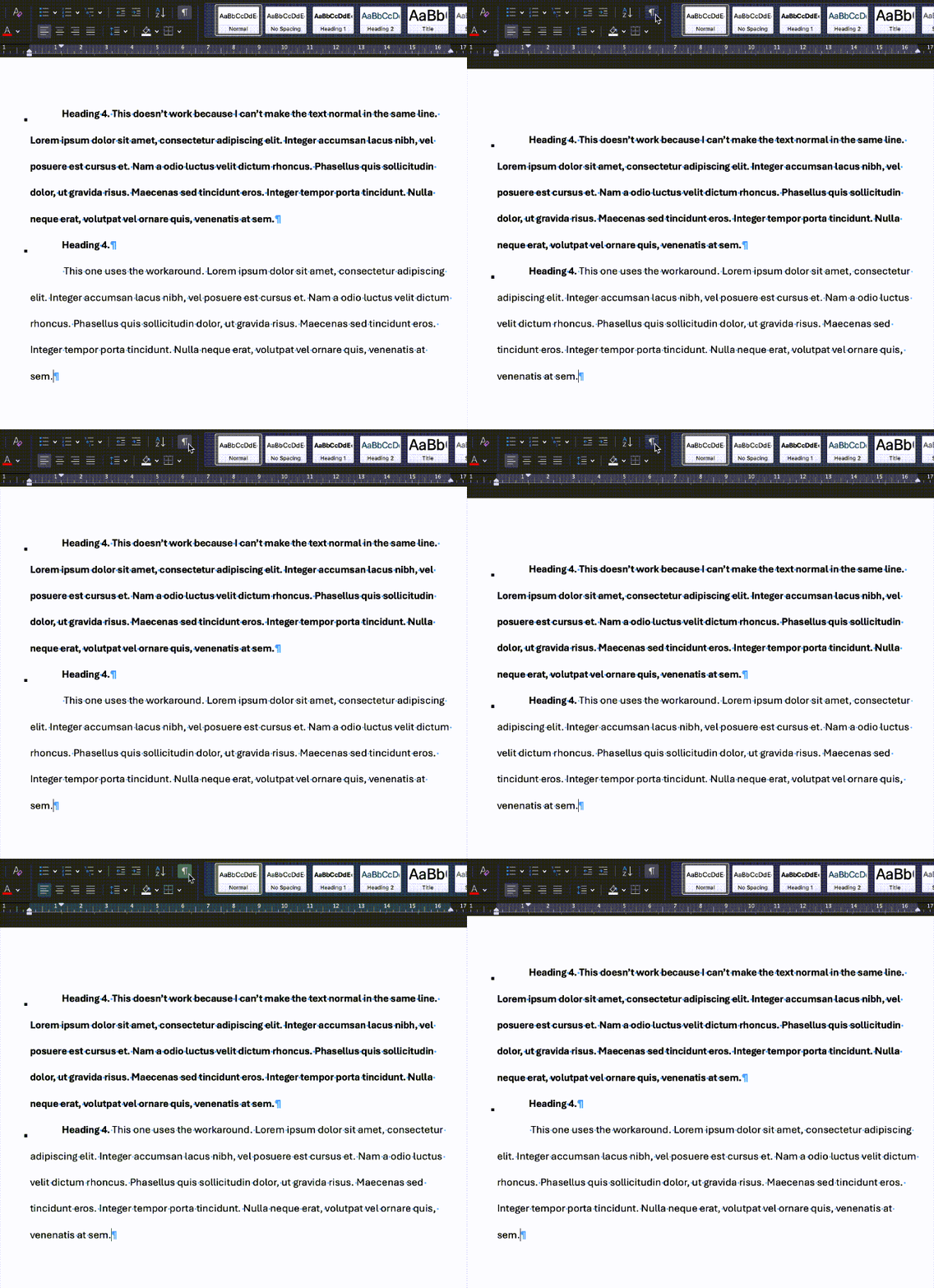
What a world we live in.
I have no formal studies in the STEM field, although I’ve been a tech enthusiast since I was three and programming since I was 9, so I am basically smurfing in the technical subjects, although I am learning a lot in maths and the engeneering ones. ↩︎
I find Libre Office much more intuitive than Microsoft Office, although I reckon it has many limitations. I simply can’t get my head around Ribbon, and Libre Office has worked for me well as an alternative to Microsoft Office. ↩︎
Style, here, refers to the Microsoft Word concept of style, sets of formatting instructions that can be applied to text, lists, and tables to ensure consistent appearance and allow for quick document-wide updates. They are important when dealing with academic paper styling to ensure that the document remains consistent, but also for semantics. For instance, heading styles have the correct semantics to structure the document and sections and subsections, which can later be used to generate automatically a table of contents, is used in the exported PDF table of contents, among other important things. ↩︎
This, by itself, in my opinion, is already a subpar experience, as I’m decoupling something that should be coupled with the style. For instance, if I decided to change a heading from level 3 to 4, it should automatically force the following content to the same line. It is even worse in the reverse case, as I may convert a level 4 heading to a lower level and not notice that there’s a style separator. ↩︎